

Dask DataFrame - parallelized pandas#
Looks and feels like the pandas API, but for parallel and distributed workflows.
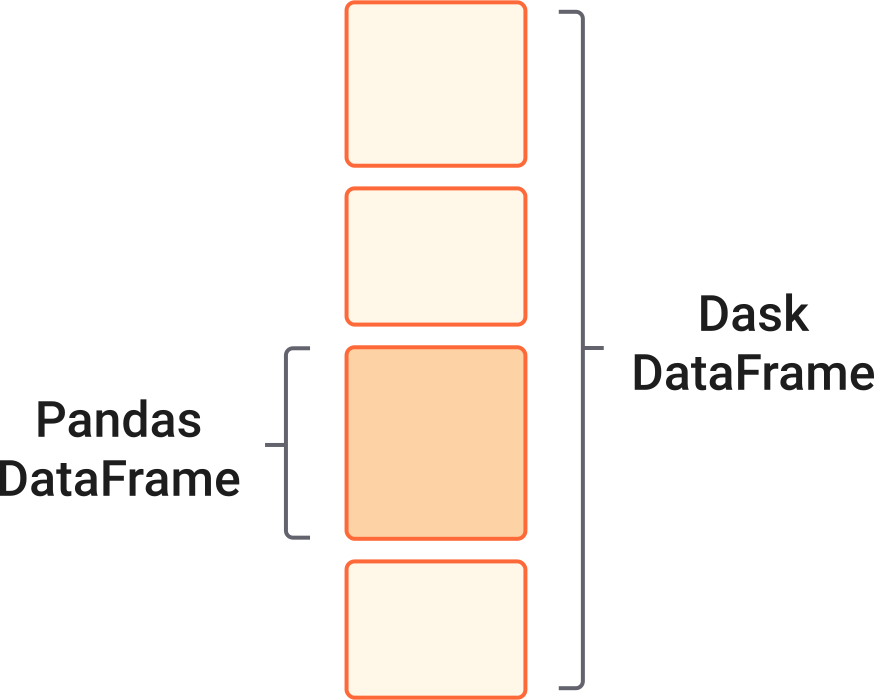
At its core, the dask.dataframe module implements a “blocked parallel” DataFrame object that looks and feels like the pandas API, but for parallel and distributed workflows. One Dask DataFrame is comprised of many in-memory pandas DataFrames separated along the index. One operation on a Dask DataFrame triggers many pandas operations on the constituent pandas DataFrames in a way that is mindful of potential parallelism and memory constraints.
Related Documentation
When to use dask.dataframe#
pandas is great for tabular datasets that fit in memory. A general rule of thumb for pandas is:
“Have 5 to 10 times as much RAM as the size of your dataset”
~ Wes McKinney (2017) in 10 things I hate about pandas
Here “size of dataset” means dataset size on the disk.
Dask becomes useful when the datasets exceed the above rule.
In this notebook, you will be working with the New York City Airline data. This dataset is only ~200MB, so that you can download it in a reasonable time, but dask.dataframe will scale to datasets much larger than memory.
Set up your local cluster#
Exercise 1#
Create a local Dask cluster and connect it to the client. Don’t worry about this bit of code for now, you will learn more in the Distributed notebook.
Dask Diagnostic Dashboard#
Dask Distributed provides a useful Dashboard to visualize the state of your cluster and computations.
Just click on the dashboard link displayed in the Client details above: http://127.0.0.1:8787/status. It will open a new browser tab with the Dashboard.
Reading and working with datasets#
Exercise 2#
Let’s analyze some data using extract of flights in the USA across several years. This data is specific to flights out of the three airports in the New York City area.
To begin, download NYC Flight data here, and unzip it somewhere you can find it.
Let’s read an extract of flights in the USA across several years. This data is specific to flights out of the three airports in the New York City area.
By convention, we import the module dask.dataframe as dd.
The following filename includes a glob pattern *, so all files in the path matching that pattern will be read into the same DataFrame. For example, on my computer I’m using the path "/users/nce8/downloads/nycflights/*.csv".
Load the data, then call the dataframe the way you would normally (e.g., just type flights or whatever you called your dataframe).
As you (should) see, Dask has not loaded the data yet, so you’ll see empty rows.
Basically, dask has:
investigated the input path and found that there are ten matching files
intelligently created a set of jobs for each chunk – one per original CSV file in this case
Lazy Evaluation#
Most Dask Collections, including Dask DataFrame are evaluated lazily, which means Dask constructs the logic (called task graph) of your computation immediately but “evaluates” them only when necessary. You can view this task graph using .visualize(). (you may be asked to run conda install python-graphviz).
You will learn more about this in the Delayed notebook, but for now, note that we need to call .compute() to trigger actual computations.
Some functions like len and head also trigger a computation. Specifically, calling len will:
load actual data, (that is, load each file into a pandas DataFrame)
then apply the corresponding functions to each pandas DataFrame (also known as a partition)
combine the subtotals to give you the final grand total
Try using len to get the number of rows in the dataframe.
# load and count number of rows
# len(flights)
You should get a bit of an error:
len(flights)

# ValueError: Mismatched dtypes found in `pd.read_csv`/`pd.read_table`.

# +----------------+---------+----------+
# | Column         | Found   | Expected |
# +----------------+---------+----------+
# | CRSElapsedTime | float64 | int64    |
# | TailNum        | object  | float64  |
# +----------------+---------+----------+

# The following columns also raised exceptions on conversion:

# - TailNum
#   ValueError("could not convert string to float: 'N54711'")

# Usually this is due to dask's dtype inference failing, and
# *may* be fixed by specifying dtypes manually by adding:

# dtype={'CRSElapsedTime': 'float64',
#        'TailNum': 'object'}

# to the call to `read_csv`/`read_table`.
Unlike pandas.read_csv which reads in the entire file before inferring datatypes, dask.dataframe.read_csv only reads in a sample from the beginning of the file (or first file if using a glob). These inferred datatypes are then enforced when reading all partitions.
In this case, the datatypes inferred in the sample are incorrect. The first n rows have no value for CRSElapsedTime (which pandas infers as a float), and later on turn out to be strings (object dtype). Note that Dask gives an informative error message about the mismatch. When this happens you have a few options:
Specify dtypes directly using the
dtypekeyword. This is the recommended solution, as it’s the least error prone (better to be explicit than implicit) and also the most performant.Increase the size of the
samplekeyword (in bytes)Use
assume_missingto makedaskassume that columns inferred to beint(which don’t allow missing values) are actuallyfloats(which do allow missing values). In our particular case this doesn’t apply.
In our case we’ll use the first option and directly specify the dtypes of the offending columns.
Load the data again, this time specifying dtype, and then ask for the len:
Reading from remote storage#
If you’re thinking about distributed computing, your data is probably stored remotely on services (like Amazon’s S3 or Google’s cloud storage) and is in a friendlier format (like Parquet). Dask can read data in various formats directly from these remote locations lazily and in parallel.
Here’s how you can read the NYC taxi cab data from Amazon S3:
flights = dd.read_parquet(
    "s3://nyc-tlc/trip data/yellow_tripdata_2012-*.parquet",
)
You can also leverage Parquet-specific optimizations like column selection and metadata handling, learn more in the Dask documentation on working with Parquet files.
Computations with dask.dataframe#
Let’s compute the maximum of the flight delay.
With just pandas, we would loop over each file to find the individual maximums, then find the final maximum over all the individual maximums.
import pandas as pd

files = os.listdir("/users/nce8/downloads/nycflights")

maxes = []

for file in files:
    df = pd.read_csv(f"/users/nce8/downloads/nycflights/{file}"))
    maxes.append(df.DepDelay.max())

final_max = max(maxes)
dask.dataframe lets us write pandas-like code, that operates on larger-than-memory datasets in parallel.
This creates the lazy computation for us and then runs it.
Note: Dask will delete intermediate results (like the full pandas DataFrame for each file) as soon as possible. This means you can handle datasets that are larger than memory but, repeated computations will have to load all of the data in each time. (Run the code above again, is it faster or slower than you would expect?)
You can view the underlying task graph using .visualize():
Exercise 3#
Calculate how many flights had been cancelled.
Exercise 4#
In total, how many non-canceled flights were taken from each airport?
Hint: use groupby.
Exercise 5#
What was the average departure delay from each airport?
Exercise 6#
What day of the week has the worst average departure delay?
.persist()#
While using a distributed scheduler (you will learn more about schedulers in the upcoming notebooks), you can keep some data that you want to use often in the distributed memory.
persist generates “Futures” (more on this later as well) and stores them in the same structure as your output. You can use persist with any data or computation that fits in memory.
If you want to analyze data only for non-canceled flights departing from JFK airport, you can either have two compute calls like in the previous section:
Or, consider persisting that subset of data in memory.
Analyses on this persisted data is faster because we are not repeating the loading and selecting (non-canceled, JFK departure) operations.
Exercise 7#
Find what airport has the most cancelled flights and what day of the week has the most cancelled flights. Use .persist() in the course of these manipulations.
Close you local Dask Cluster#
It’s good practice to always close any Dask cluster you create:
client.shutdown()